Quickstart › EMR Integrations›Practice Fusion
Practice Fusion

Sending a Referral to PicassoMD

Practice Fusion’s built-in referral form lets you route directly to PicassoMD from the patient chart. Referrals are transmitted by fax and can include clinical attachments.


1

Open the patient’s chart

Navigate to the patient you want to refer and open their chart.

2

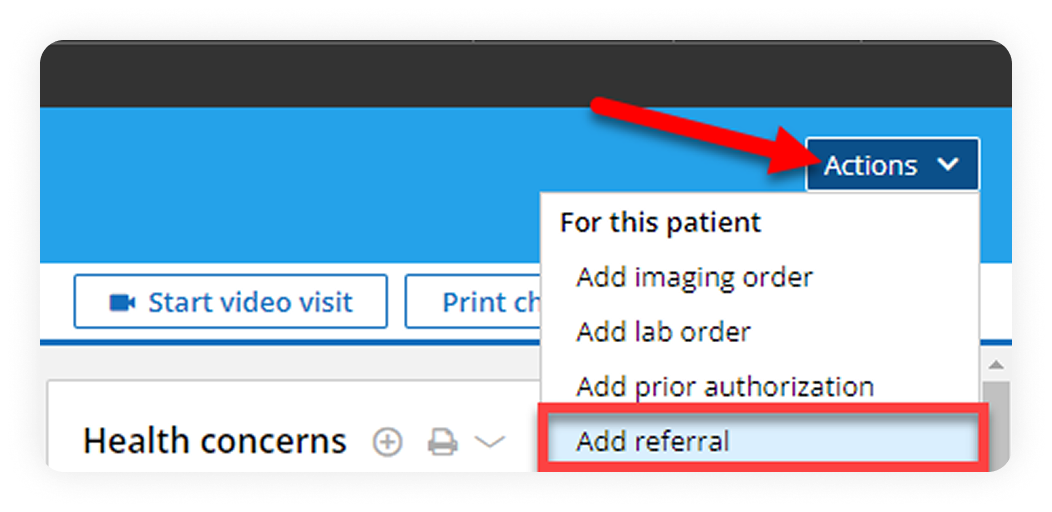
Click Actions → Add Referral

In the top-right of the patient chart, click the Actions dropdown and select Add Referral.
3

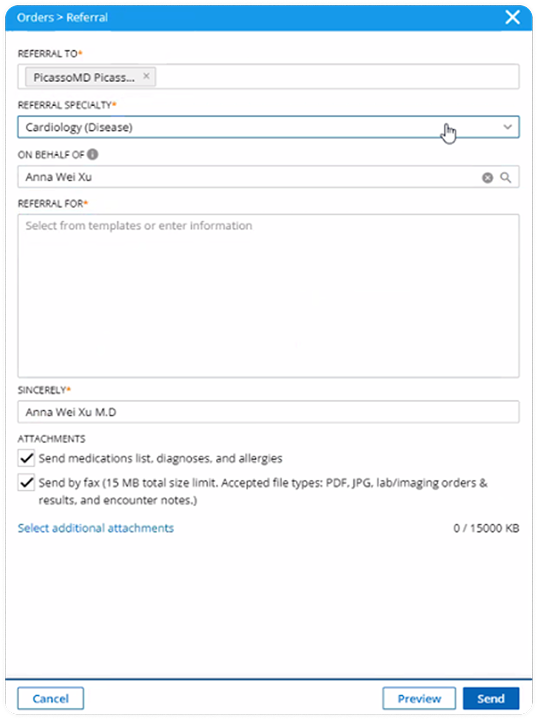
Search for PicassoMD in Referral To

In the Orders › Referral form, type PicassoMD in the Referral To field. Next My Connections menu will trigger to select PicassoMD as the referral recipient.
4

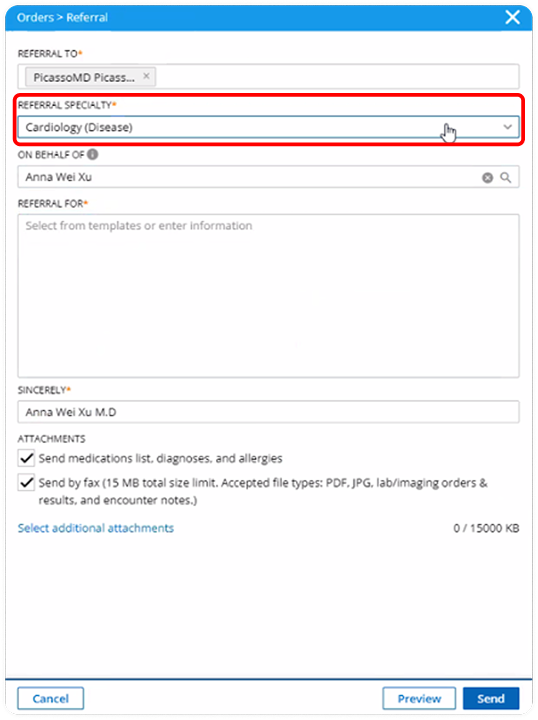
Set specialty and referring provider

Adjust Referral Specialty to match the clinical need, and confirm the On Behalf Of field shows the correct referring provider.
5

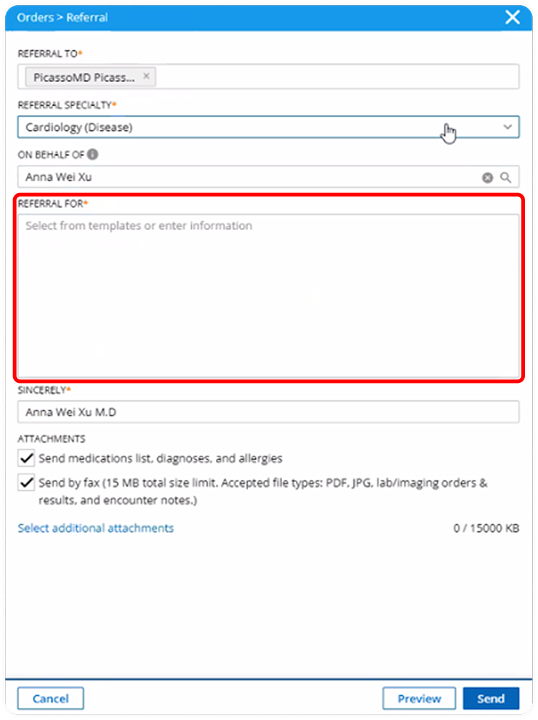
Enter the reason for referral

In the Referral For field, enter your reason for referral or name a specific specialist. Your practice can create templates to standardize referral notes uniformly.

6

Attach medications, diagnoses, and allergies

Verify the Send medications list, diagnoses and allergies checkbox is marked. This automatically includes the patient’s current med list, problem list, and allergy record.

7

Add clinical documents (optional)

Click Select Additional Attachments if your referral includes other patient clinical documents such as lab results, imaging orders, or encounter notes.

8

Send the referral

Click Send Referral. The referral is transmitted to PicassoMD by fax.